Category Archives: Linux

Managing /etc with etckeeper and git

The following was done on Fedora 14. Keep in mind that the Etckeeper and git specific actions will be similar on whatever platform you’re on.

Simply put, Etckeeper automatically revisions your /etc folder. Allows you to compare, commit and revert the changes that have been made. It’ll also allow you to restore files, should you be unlucky and delete them. Once etckeeper is installed, it will work together with your package manager and cron to do its work. To manage all this you’ll use the commands that your chosen VCS (Version Control System).

Etckeeper supports Git, Bazaar, Darcs and Mercurial.

Use of Etckeeper

Installation

yum install etckeeper

Initialization

etckeeper init

Initial commit

etckeeper commit "initial commit"

Once this is done, etckeeper will make sure that every time you use the package manager (YUM) changes will be recorded. There are however a few git related commands you should be aware of.

Useful and necessary commands

Note: All of these commands assumes your current path is /etc

Viewing the Git log

git log

Check if there’s any modified files

git status

Complete status overview

git log --stat --summary

Revert a change

git revert 

View changes you haven’t commited yet

git diff

List different commits, each on one line.

git log --pretty=oneline

Revert to latest change-set, discarding changes

git reset --hard

Re-enter commit message

git commit --amend

Have at it folks!

// CrashMAG

Correcting the eth0 MAC Address in RHEL or CentOS

Cloning machines in VMWare is really straightforward thing. However once you do clone a machine, you’ll be left with new MAC addresses for the network cards. In a typical scenario the cloned RHEL or CentOS machine will boot up without the local network interface. You’ll typically see the following during boot.

Bringing up interface eth0: Device eth0 has different MAC address than expected, ignoring.

The reason for this is that

/etc/sysconfig/network-scripts/ifcfg-eth0

contains a variable called “HWADDR=”. Do the following to add the appropriate MAC address and restore networking functionality.

  • As the root user (or a user with appropriate permissions)
  • Type “ifconfig -a”
  • From the displayed information, find eth0 (this is the default first Ethernet adapter)
  • Locate the number next to the HWaddr. This is your MAC address

A typical output would be as follows.

eth0      Link encap:Ethernet  HWaddr 00:1B:21:1F:66:88
          inet addr:192.168.0.5  Bcast:192.168.0.255  Mask:255.255.255.0
... the additional output has been removed...

Now you edit

/etc/sysconfig/network-scripts/ifcfg-eth0

and modify the “HWADDR=” variable to include your MAC address. E.g.

HWADDR=00:1B:21:1F:66:88

Save the file. At this point you run

# service network restart

as root from the command prompt. You’ve now restored networking.

// CrashMAG

Disable IPv6 lookups with Bind on RHEL or CentOS

Discovered during a recent project. Bind / Named was constantly spamming the logs about it being unable to reach root servers. The logs revealed that we were talking IPv6 addresses. Which was assumed to be disabled.

The less cool part was that in “/etc/named.conf” the following was commented out.

//      listen-on-v6 port 53 { ::1; };

It turns out that to disable the IPv6 lookups you have to edit “/etc/sysconfig/named” and set

OPTIONS="-4"

The option does the following

Use IPv4 only even if the host machine is capable of IPv6. -4 and -6 are mutually exclusive.

You then run

service named restart

This serves the very practical purpose of not spamming the logs. My ISP has yet to enable IPv6 so it does me no good.

// CrashMAG

Examples of using rsync

Some of the main features of rsync include

  • can update whole directory trees and filesystems
  • optionally preserves symbolic links, hard links, file ownership, permissions, devices and times
  • internal pipelining reduces latency for multiple files
  • can use rsh, ssh or direct sockets as the transport
  • checksum based verification

Preserving permissions, updating whole directory trees and secure transfers over ssh makes this the ideal backup tool. And it can be easily scheduled using cron. It’s also incredibly fast if you make us of the rsync daemon and not ssh.

This article will cover a few examples so that you’ll be able to quickly make use of the primary features of rsync.

Things to note when you use rsync

Copy the /home/temp folder to the remote-host

$ rsync -v /home/temp/ username@remote-host:/home/temp/

Copy the folder & the files within /home/temp to the remote host

$ rsync -v /home/temp/* username@remote-host:/home/temp/

Copy the folder & the files within /home/temp to the remote host. And recursively all the folders and files within /home/temp.

$ rsync -rv /home/temp/* username@remote-host:/home/temp/

Note: If you append the “-n” parameter rsync will simulate the operation you’re trying to do.

-n, --dry-run         perform a trial run with no changes made

All the examples were tested using the following version of rsync

rsync  version 3.0.7  protocol version 30
Copyright (C) 1996-2009 by Andrew Tridgell, Wayne Davison, and others.
Web site: http://rsync.samba.org/
Capabilities:
    64-bit files, 64-bit inums, 64-bit timestamps, 64-bit long ints,
    socketpairs, hardlinks, symlinks, IPv6, batchfiles, inplace,
    append, ACLs, xattrs, iconv, symtimes

Example 1 - Backing up a folder and its sub-folders to a remote location

We do not preserve file permissions here. But we do use rsyncs ability to checksum to verify that the content that we copy are 1 to 1.

$ rsync -vrc /home/temp/ username@remote-host:/home/temp/

Parameters used in the above example

  • -v for verbose
  • -r for recursive
  • -c for skip based on checksum, not mod-time & size

You may also want to add information of your progress, keep partially uploaded files so they can be resumed if anything goes wrong and metric information that makes sense. Your desired command will then be as follows.

$ rsync -vrcPh /home/temp/ username@remote-host:/home/temp/
  • -P for progress during transfer and keep partially transferred files
  • -h for output numbers in a human-readable format

Example 2 - Backing up a folder and its sub-folders to a remote location preserving file permissions

This is a classical backup scenario. We’re keeping the ownership and file permissions. And copying this off to a remote location. We’re also not overwriting files that are newer on the receiver.

$ rsync -auvrc /home/temp/ username@remote-host:/home/temp/
  • -a for archive mode; equals -rlptgoD
  • -u for skip files that are newer on the receiver
  • -v for verbose
  • -r for recursive
  • -c for skip based on checksum, not mod-time & size

Example 3 - Copy folders to & from a local system

We do not preserve file permissions here. But we do use rsyncs ability to checksum to verify that the content that we copy are 1 to 1. This also serves as a way to test for faulty hard drives. We also for this enable the progress information and human-readable formats.

$ rsync -vrhc --progress  /home/importantfiles/ /mnt/externaldisk/backup_of_importantfiles/

Parameters used in the above example

  • -v for verbose
  • -r for recursive
  • -h for output numbers in a human-readable format
  • -c for skip based on checksum, not mod-time & size
  • -progress for show progress during transfer

Example 4 - View the changes between the source and destination system

To accomplish this we use the itemize-changes and recursive parameter

$ rsync -ri /home/temp/ username@remote-host:/home/temp/

You’ll then see something that could look like this

Parameters used in the above example

  • -r for recursive
  • -i for output a change-summary for all updates

It’s worth noting that “decoding” the results from rsync with “-i” requires knowledge about all the references. Those are very well documented in the man page under the “-i, -itemize-changes” section. You can also tweak the output using -out-format.

Example 5 - Backing up a folder and its sub-folders to a remote location with a bandwidth limitation

$ rsync -vrc --bwlimit=10000 /home/temp/ username@remote-host:/home/temp/
  • -v for verbose
  • -r for recursive
  • -c for skip based on checksum, not mod-time & size
  • -bwlimit=KBPS for limiting I/O bandwidth by KBytes per second

// CrashMAG

How to configure the networking in Fedora 14 when you used a minimal install

Using the minimal Fedora 14 install presented two small challenges.

  1. No networking except for loopback / 127.0.0.1
  2. No nano to edit the relevant configuration files.

In a nutshell, it’s a paradox. I’d like to get nano to edit configuration files. But to do that I need network access. Turned out that I had to use “vi” which I never do to edit the networking files. What a pain. I personally can’t stress how retarded it is with an editor, that requires you to enter text, to be able to enter text.

So the following was done to remedy the matter.

Edit the networking configuration using vi

# vi /etc/sysconfig/networking-scripts/ifcfg-eth0

Used the arrows to navigate to the end of the “ONBOOT=no” line.

  1. Pressed i to enter insert mode.
  2. Modified “ONBOOT=no” to “ONBOOT=yes”.
  3. Pressed ESC to exit insert mode.
  4. Pressed o to add a new line.
  5. Press i to enter insert mode.
  6. Added “BOOTPROTO=dhcp”
  7. Pressed ESC to exit insert mode.
  8. Typed in :wq to exit and save the file.

Or for a static IP

  1. Press i to enter insert mode.
  2. Modify “ONBOOT=no” to “ONBOOT=yes”.
  3. Press ESC to exit insert mode.
  4. Press o to add a new line.
  5. Press i to enter insert mode.
  6. Added “BOOTPROTO=static”
  7. Press o to add a new line.
  8. Add IPADDR=X.X.X.X
  9. Press o to add a new line.
  10. Add NETMASK=X.X.X.X
  11. Press ESC to exit insert mode.
  12. Type in :wq to exit and save the file.

Restart the networking service

# service network restart

Done!

Install nano

# yum install nano

Voila! This way one can edit text files easily, without having to enter text to enter text like in vi. (Made my dizzy just typing it)

// CrashMAG

Setting up and configuring the Deluge 1.3 web interface on a headless server

This is a continuation of my previous article which goes through setting up and configuring the Deluge daemon. In my example I use Arch Linux. You may have another distribution and the commands to install the software will differ. Arch Linux separates the web interface out in a package. Your distribution may or may not. Most do however leave the Deluge web component out. See beneath for details for Debian, Ubuntu & Fedora.

We want to set up the very slick web interface. See beneath for the screenshot.

In addition to the software we already installed there’s more to go to get the web interface working. These are not installed by default so to do so, simply run the following.

Arch Linux

# pacman -S deluge

Debian/Ubuntu

# apt-get install deluge-webui

Fedora

# yum install deluge-web

Install dependencies for deluge-web.

# pacman -S python-mako

This will also install the following dependencies

Targets (3): python-markupsafe-0.9.2-1 python-beaker-1.5.4-1 python-mako-0.3.4-3

Start the Deluge web client.

# /etc/rc.d/deluge-web start

Connect to the web client using your browser.

http://server name or IP:8112

NB: You will not be able to do the initial configuration using Google Chrome. But you can use the interface in general with Google Chrome.

Configure the password.

You can now monitor Deluge as you prefer using a web interface. If it’s set up properly you can access this from anywhere.

// CrashMAG

Setting up Deluge 1.3 on a headless server with Autoadd and Labels.

Deluge has finally joined the ranks of the torrent clients able to run in an easy and efficient way on a headless box. They’ve now included the Autoadd plugin so that you can dump .torrent files into the specified directories and have Deluge add them and label them.

In other words Deluge now handles multiple trackers very well and allows you to effectively organize your downloads.

It’s worth mentioning that the client actually allow you to sort on trackers either way. With favicons even.

In my example I will make use of Arch Linux. The method will in principal be the same on any distribution. Keep in mind that the biggest difference will be if your distribution has included scripts to start the daemons. Arch Linux has.

There are primarily 2 methods that you want to make use of to remote control the Deluge daemon. Either the I’ll use the Deluge GUI client in my example. As the autoadd and labels plugins wont be possible to configure using the web client.

  1. The Deluge GUI client.
  2. The Deluge Web interface.

From here on I’ll provide step-by-step instructions of how to get Deluge installed, running as a daemon and configured to autoadd torrents.

Installing Deluge

# pacman -S deluge

This will install the following dependencies on a clean box:

Targets (12): python-2.6.5-3 pyxdg-0.19.-1 setuptools-0.6.c11-2 boost-libs-1.43.0-1 libtorrent-rasterbar-0.15.2-1 pycrypto-2.1.0-1 zope-interface-3.5.3-1 twisted-10.0.0.-1 pyopenssl-0.10-2 xdg-utils-1.0.2.20100618-1 python-chardet-2.0.1-1 deluge-1.3.0-1

Starting the daemon and defining the user which it will run under

# nano /etc/conf.d/deluged

Edit the

DELUGE_USER=”username”

and change it to your own.
Start the daemon.

# /etc/rc.d/deluged start

Enable remote connections so you can administer the installation

$ deluge-console
$ config -s allow_remote True
exit

We now need to add the user information for authentication
Edit ~/.config/deluge/auth for the user you’re running the Deluge daemon as.
Add the following on a new line after the “localhost…” entry.

username:password:10

Then.

# /etc/rc.d/deluged restart

Now lets connect. Start your Deluge client and enter in your server information in the add host dialogue.
NB: You need to enter Preferences -> Interface and disable the “Classic Mode” to be able to access the connection manager

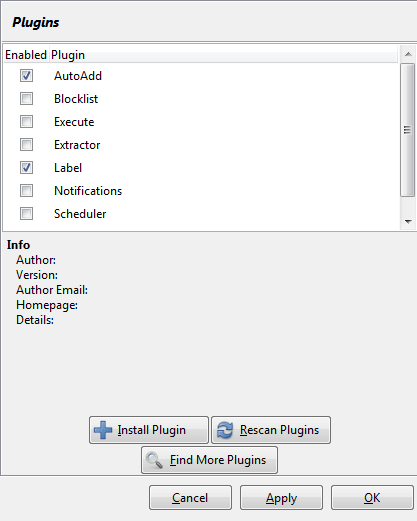
Once done open up “Preferences” and go to the plugins section. And select them as follows.

Now navigate to the Autoadd section and configure it according to your needs.

You repeat the last step for every tracker and/or type of torrents you want. And I must say, this setup is working very well for me.

Further information can be found at http://dev.deluge-torrent.org/wiki/UserGuide/ThinClient

// CrashMAG

Using CHMOD in symbolic mode for more fine grained control

I’d like to share some information on how to use “chmod” in symbolic mode. This will give you a lot more fine grained control than octal mode. I also intend to illustrate using examples as it is the easiest way of learning something new very quickly.

The format of a symbolic mode is [ugoa...][[+-=][perms...]...], where perms is either zero or more letters from the set rwxXst, or a single letter from the set ugo. Multiple symbolic modes can  be given, separated by commas.

Example (This adds read, write and execute to file1 & file2 for all users):

chmod a+rwx file1 file2
A  combination  of  the letters ugoa controls which users' access to the file will be changed:
the user who owns it (u),
other users in the file's group (g),
other users not  in  the  file's  group (o),
or  all  users  (a).
If none of these are given, the effect is as if a were given, but bits that are set in the umask are not affected.

Usually you will use chmod in this manner:

chmod [options] [permissions] [file or directory]

Operators are explained in this way:

+ adds the permissions to the selection. Be it either a file or directory. Or both.
- removes the permissions you've specified.
= assigns just the permissions you specified and removes everything else.

Examples
Adding read, write and execute to everyone.

chmod ugo+rwx file1 file2

Adding read, write and execute to everyone more elegantly.

chmod a+rwx file1 file2

Adding read, write and execute recursivly to all directories down the tree.

chmod -R a+rwx directory

Remove read and execute access from everyone but the file owner.

chmod go-rx file1

Set read, write and execute access to directory owner. And set read and execute for everyone else recursively down the tree.
(Note the use of the capitalized X. This will set execute only for directories and not for files. A wise precaution for the group and others. Note that you should not set execute for misc files, even though it’s only for the file owner)

chmod -R u=rwx,go=rX directory1

A more secure but less practical of setting read, write and execute access to the directory owner. And read and execute for everyone else down the tree.

chmod -R u=rwX,go=rX directory1

I would’ve most likely used the following, which is the same as the above except you leave files under the file/directory owner as-is. But add instead of set the permissions for the owner. Also note that the “-R” is at the end. I usually forget the options till the end.

chmod u+rwX,go=rX directory1 -R

I also want to include a short notice about the popular “777” that you will find instructions a lot of places to use. It’s a BIG no no. This is an octal reference to chmod. And means that you give read, write and execute permissions to everyone.

When someone have included instructions that tells you to do so, they have no clue what’s wrong. It is a lazy catch-all. The fix would be to set the appropriate permissions on the folder(s) and file(s) that are relevant. You should never use such instructions unless you’re in a test environment.

So just to clarify I’ll illustrate using both an symbolic and octal example.
Octal

chmod 777 file1

Symbolic

chmod a+rwx file1

The sequence of these numbers works just in the same way as the symbolic mode. First it’s a number representing certain rights for the user, then the group and lastly everyone else (others).
The values represent the following:

read = 4
write = 2
execute = 1

You either add or subtract from 7 to get the appropriate rights. “777” indicates

4 + 2 + 1 = 7

Worst case scenario using the octal mode would be

chmod -R 777 directory1

Which is the same as using

chmod -R a+rwx directory1

This does not even use the capital “X”, which means that not only does every directory have execute permissions. But every file as well. This is mildly put, highly insecure.

I hope this is sufficient to convey an understanding of how chmod works. Most importantly I want to say that setting permissions is hard and is supposed to be done by the ones that supply the application (this include web applications which usually come as compressed archives. In layman terms, Linux/BSD/Solaris preserves permissions from archives. Which is the opposite of what happens on Windows).

// CrashMAG

Nano syntax highlighting

I wanted to share an easy way of adding syntax highlighting to your favorite editor. I’ll give you examples to use for Arch Linux, RHEL, CentOS, Fedora and Debian. This all requires you to add code to your ~/.nanorc file. Luckily, the nano packages contain what you want. You just have to add it.

The typical format of these nanorc files that comes with the nano package is programming_language.nanorc.

To list the available packages for each distributions please do the following

RHEL/CentOS/Scientific Linux/Fedora

# rpm -ql nano | grep nanorc

Debian

# dpkg -S nano | grep nanorc

Arch Linux

# pacman -Ql nano

They all reside in the /usr/share/nano/ folder on each system.

You add languages to your ~/.nanorc the following way.

$ cat /usr/share/nano/programming_language.nanorc >> ~/.nanorc

The >> option will append information so you can keep using this command for each language you want to add syntax highlighting for.

// CrashMAG

How to be a more productive Linux system administrator

Came across a nice little article at IBM developerworks today. Learned a new command and got reminded of a few things. It was worth my time reading it.

Here’s a quote of the summary of the article…

Learn these 10 tricks and you’ll be the most powerful Linux® systems administrator in the universe…well, maybe not the universe, but you will need these tips to play in the big leagues. Learn about SSH tunnels, VNC, password recovery, console spying, and more. Examples accompany each trick, so you can duplicate them on your own systems.

Click here to head over to developerworks for the original article

// CrashMAG